
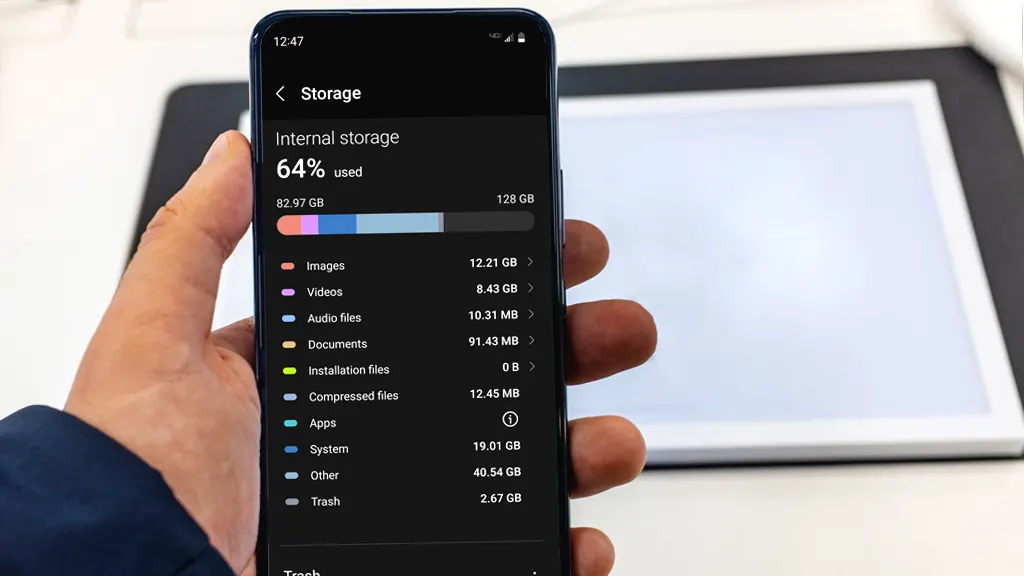
Moving a photo library in 2026 still fails in the same sneaky ways: your images look fine, but capture dates change to the day you copied them, location tags vanish, edited versions replace originals, and videos quietly get re-encoded so HDR or smooth motion is gone. The fix is to treat your camera roll like an archive with rules, not a pile of files. “Quality” means the original resolution and codec stay intact. “Dates” means the real capture timestamp stays attached and the destination app sorts correctly. “Metadata” means EXIF and video tags (camera info, lens, GPS, HDR, frame rate, orientation) survive the move. The most reliable approach is to choose a transfer route that moves originals end-to-end, run a small test set first, verify results on a second device or app, and only then migrate everything and wipe the old device. If you do those steps in order, you avoid the classic disaster of discovering problems after you’ve already factory-reset the source phone or formatted the old drive.
Choose a transfer method that preserves originals, not “optimized” or shared copies
The first lifehack is choosing a method designed for archiving, not for sharing. Sharing pipelines—messengers, social apps, email attachments, “quick share” flows—often resize, recompress, strip metadata, or convert video formats to save bandwidth, which is exactly what you don’t want during a migration. For a clean archive move, you generally want either a full-library sync that explicitly stores originals, or a direct file transfer of original folders without any “helpful” conversion. If you rely on a photo cloud library, confirm it is set to keep originals and that your device has finished uploading everything before you switch devices; otherwise you may unknowingly transfer only smaller cached versions. If you prefer a file-based archive, copy the original camera folders and any other folders where media actually lives, then import from that archive into the new device’s photo app. Be careful with workflows that “export” from a library as they may export edited derivatives rather than the untouched originals, and some exports can drop motion-photo companions or special HDR tags. The safest decision rule is simple: choose one primary library or one primary archive folder as the source of truth, and use a method that moves those originals without reinterpretation.
Protect dates and metadata: avoid the traps that rewrite timestamps or strip EXIF
Most date problems come from confusing three different timestamps: the capture date embedded in the file, the file system “created” date, and the file system “modified” date. When you copy files through some apps or cloud folders, the file system dates can reset to “today,” and then the destination gallery sorts by those values instead of the embedded capture date—especially for screenshots, edited exports, or older files with incomplete tags. Your goal is to preserve the embedded capture timestamp and make sure the destination app reads it correctly. That means copying originals in a way that doesn’t re-save them, and avoiding “save to gallery” actions that create a fresh file with new timestamps. It also means respecting companion data: motion photos, portrait depth, RAW+JPG pairs, and some HDR videos can be made of multiple related components or extra metadata blocks that are easy to lose if you only move “what you can see.” After transferring, don’t just look at one recent album and assume success. Open a few items from different years, check that the capture date shown matches reality, confirm that location shows up on items you know were geotagged, and inspect a couple of videos to ensure duration, resolution, and HDR appearance still match what you had before. If anything looks off, stop and adjust the method before moving the entire library.
Phone-to-phone migration: do a controlled move, then verify before wiping the old device
Phone upgrades are where people lose data because the migration feels “one-click,” and the urge to wipe the old device is strong. The safer lifehack is to treat the new phone setup as a rehearsal with checkpoints. Start by ensuring the old phone has completed any background sync or backup you depend on, then run the device migration tool or your chosen transfer method. When it finishes, do a verification pass while the old phone is still intact: pick a handful of photos and videos that represent edge cases and confirm they survived correctly. Include at least one photo with GPS, one portrait-style shot, one motion/live-style photo, one screenshot, one HDR video if you have it, and one longer clip. Check that the destination library shows the original capture date rather than the transfer date, that locations still appear where expected, and that videos play with the same look (no obvious dimming, washed HDR, or new compression artifacts). If you notice missing metadata or incorrect sorting, you can re-run the migration using a different route while you still have the source device. Only after you’ve verified the sample and spot-checked older months or years should you factory reset the old phone, because that’s the point of no return.
Computer transfers and long-term archiving: keep a “master originals” folder and verify on a second device
When computers are involved, the biggest risk is accidental conversion and messy organization that becomes impossible to validate later. A strong 2026 workflow is to maintain a single “master originals” archive folder where files are stored exactly as captured, then import or copy from that archive into whatever photo apps you use. This protects you from a bad import or a new app that reorganizes things in a way you don’t like, because you can always rebuild from untouched originals. If you’re moving from one computer to another, copy the master archive as files first, then run imports from that copied archive, rather than importing directly from the old photo library database unless you know that database migrates perfectly. After copying, verify on a second device or a different app so you’re not relying on one program’s interpretation: check that the same photo shows the same capture date, that orientation is correct, and that location tags still appear where expected. Treat external drives or cloud drives as transport and backup, not as the only copy; ideally you want at least two independent copies of the master archive so a single sync error, drive failure, or accidental deletion doesn’t wipe years of memories. If you keep the master originals clean and you always test a small sample before big moves, switching phones or computers becomes routine instead of stressful.